Where do I download the WordPress plugin?
This is part of the Clinical Content System subscription. If your clinic isn't subscribed yet, you can see what the Clinical Content System includes.
Sound familiar?
"I searched the WordPress plugin directory and can't find the Co-Kinetic plugin." "Can you email me the plugin file?" "My developer is asking where to get the plugin from." "Is there a setup guide for the plugin?" The plugin is downloaded from your own account: your website optimisation brief, or Download your plugin on the WordPress Connection card in Settings. Here is why, and exactly where.
What's happening
The Co-Kinetic WordPress plugin is customised for your practice. It is not a generic plugin you can find in the WordPress directory or borrow from another clinic: the copy built for you carries your practice's own configuration, so it must come from your own brief page.
To download it:
- Go to your Overview page at https://content.co-kinetic.com/my-clinic/overview.
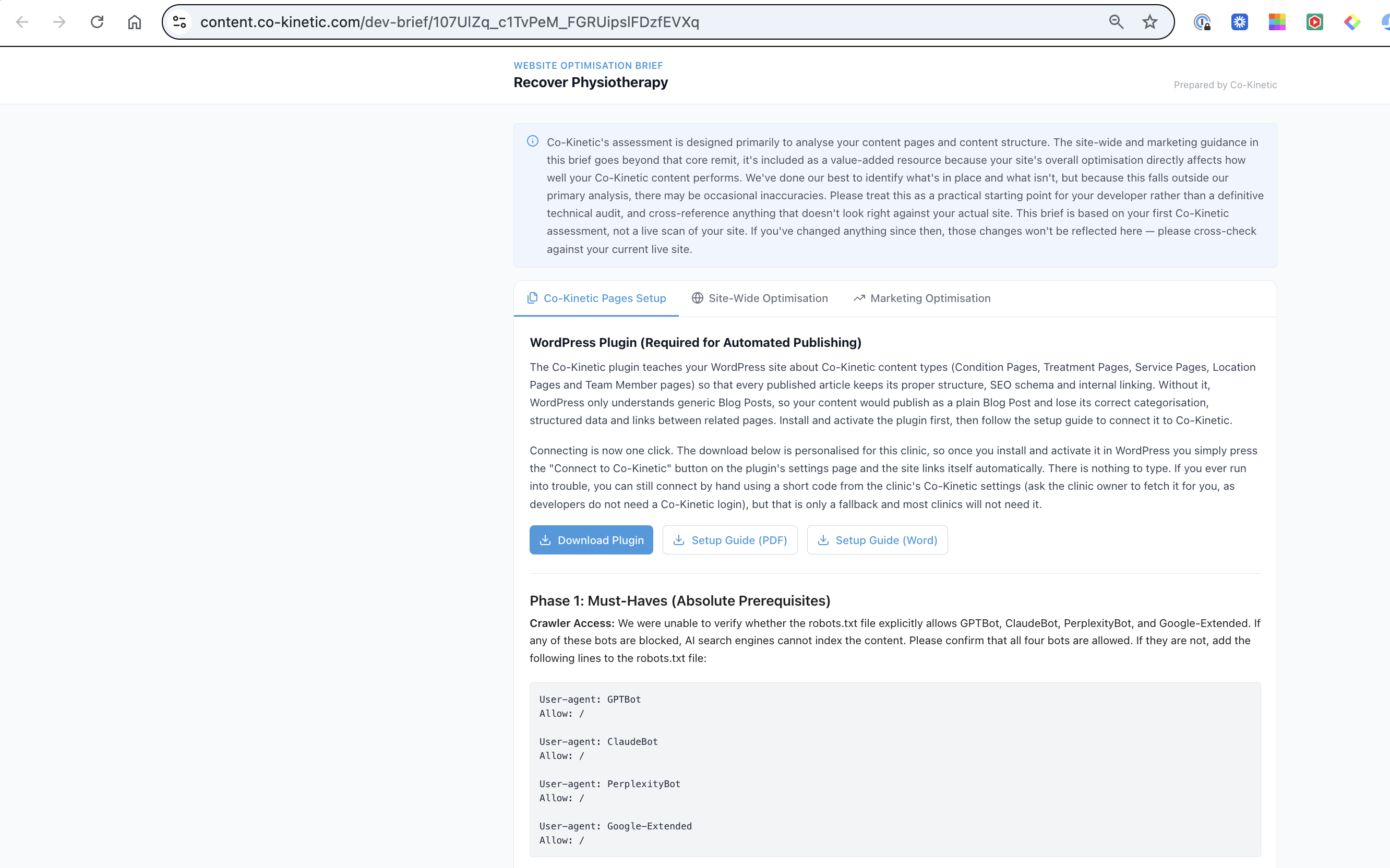
- In the section "Getting your website AI-search ready", click "View your personalised website optimisation brief" (opens in a new tab).
- Open the Co-Kinetic Pages set-up tab.
- Download the plugin from there, along with its setup guide, which is available in both PDF and Word 📥.
Why it works this way
The plugin is the bridge between the platform and your website: it handles where your generated pages and clinician profiles go and carries the structured data that describes your practice and your people in a standard format. That only works if the plugin knows which practice it belongs to, which is why each copy is built per practice and downloaded from that practice's own brief. A copy from anywhere else would be configured for someone else's clinic 🔧.
The setup guide comes in two formats deliberately: PDF for reading and printing, Word for developers who like to tick off steps or add notes as they go.
What to do now
- Open your brief from https://content.co-kinetic.com/my-clinic/overview and go to the Co-Kinetic Pages set-up tab.
- Download the plugin and the setup guide (pick PDF or Word, they are the same content).
- Install it on your WordPress site following the guide, or use "Invite your developer" on the same page so your developer downloads it themselves from the right place (see "How do I invite my developer to the optimisation brief?").
- Not on WordPress? The plugin is WordPress-only, but Put it on your website on each piece gives Squarespace and Wix clinics step-by-step instructions of their own, and copyable formats exist for any other platform.
The question behind the question
"Why is there only a plugin for WordPress, what do I do if I don't use WordPress?" WordPress powers the majority of clinic websites, which is why it got the purpose-built plugin first. If you are on something else, you are not stuck: Put it on your website a gives Squarespace and Wix clinics their own step-by-step instructions, and copyable formats exist for any platform. And if your developer needs the file itself, you can simply email it to them after downloading it from your brief, or use "Invite your developer" so they collect it from the brief directly, either works ✅.
The next question is usually...
- Where is my website optimisation brief?
- How do I invite my developer to the optimisation brief?
- Where do I find my content once it's created?
Still stuck? This usually means...
- You cannot find the download on the brief. It lives on the Co-Kinetic Pages set-up tab, not the other two tabs. If it is genuinely not there, tell us in the chat and we will check your account.
- The plugin installed but you are not sure it is working. Follow the setup guide's checks to the end; if anything fails at a specific step, tell us in the chat which step and what you saw.
- You've updated a page but your website still shows the old version. Many websites keep a saved copy of each page (a cache) for up to a day. Clear your site's cache after you publish or edit a page, so visitors and search engines see the new version straight away.
- Your site is WordPress but managed by an agency who will not install plugins. Invite them to the brief anyway: the Co-Kinetic Pages set-up tab explains what the plugin does, which is usually what an agency needs to approve it. If they still decline, ask us in the chat about the copy-paste alternatives.