How do I put my website widget on my website?
This is part of the Clinic Growth Hub subscription.
Sound familiar?
Your website's news page was last updated in another season, and every change means asking your web person. The website widget ends that: paste one small piece of code into your site once, and from then on the page updates itself every time you add or edit content in Co-Kinetic. Nothing to re-paste, ever 🔄.
What's happening
The widget is a live feed of your content, news, events, articles, rendered in your clinic's branding at the size you choose. It reads from the same content widget your emails use, so one feed keeps your website and your newsletter in step, and pinned items lead on both.
Why it works this way
A visibly alive website says "this clinic is running and cares" before a visitor reads a word, and the only sustainable way to keep a page alive is for updates to cost nothing. One embed, maintained from inside Co-Kinetic, is that: the page stays current as a side effect of content you were adding anyway 🙂.
What to do now
First, have some content in your feed: "How do I create content for my email and website widgets?" covers that.
- Click Widgets in the left-hand menu, then Manage on the Content Widget card, and find the Website Widget panel.
- Set your Layout Settings: Items Per Page (how many pieces show per page, for example 10) and Max Pinned Items (up to 3 by default: pinned pieces always show first, so pin whatever you most want visitors to see).
- Pick a Widget Size from the dropdown: each option explains its use (for example "Large – Wide layout, great for prominent page sections"). Press Preview Widget to try it; the practical method is to look at your website first, decide where the widget will live (the bottom of your homepage and a dedicated Latest News page both work well), and pick the size that suits the space.
- Optional: show only some of your content. Under Show only items with these tags, tick one or more tags and the embed code will show only items carrying them. Leave it unticked to show everything. This is useful if you have more than one location, or want a page for one kind of content: tag the items, then paste a differently filtered embed on each page.
- Press Copy Embed Code in the "Add to Your Website" panel.
- Paste it into your website: log in to your site's editor (or hand this step to your web developer: it is a couple of minutes), open the target page, switch to the editor's code view, paste where the widget should appear, and save or publish.
- Check the live page: the widget should appear in your branding. Click a few items: a workshop's "Book Now" should reach your booking page, a blog item should open the full post, exactly as you set them when building the content.
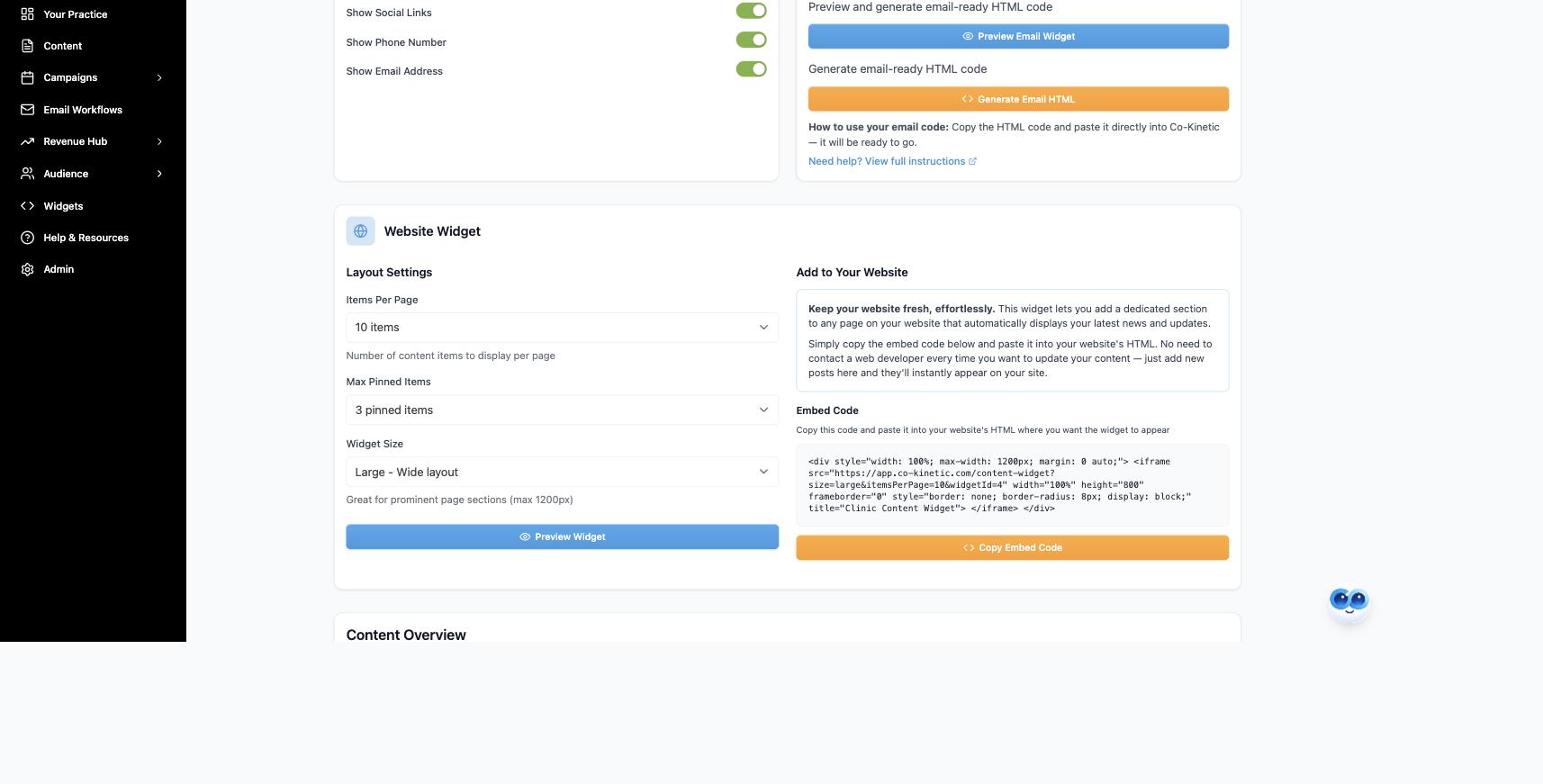
From then on it maintains itself: add, edit, pin or archive content in Co-Kinetic and the page reflects it automatically, you never touch the embed code again, even if the content changes completely. The public feed runs on your subscription: if it isn't active, visitors see a short holding message rather than a broken page.
The question behind the question
"Is this going to look like a bolted-on box?" It inherits your brand colours and logo automatically, sits at the width you chose for the space, and holds real, current content, which is precisely what makes it read as part of your site rather than a plug-in. The bolted-on look comes from stale content, not from embeds; this one cannot go stale 🎨.
The next question is usually...
- How do I create content for my email and website widgets?
- How do I put my email widget into an email?
Still stuck? This usually means...
- The widget is not showing on the page. Check the code went into the code view (not the visual view) and the page was saved.
- A filtered section of your site has gone empty. A tag it relies on was renamed or deleted. Copy the embed code again from the Website Widget panel and paste it in place of the old one.
- Visitors see a holding message. That is the subscription gate: check your widget subscription is active.
- An item's button goes to the wrong place. The link lives on the content item itself: open it in the content widget, fix the call-to-action link, and the live page updates by itself.