How do I put my email widget into an email?
This is part of the Clinic Growth Hub subscription.
Sound familiar?
You would love to send a monthly clinic round-up, news, events, latest articles, but designing a newsletter every month is exactly the job that stops it happening. The email widget builds that email for you from the content you already keep in your content widget: generate a block of HTML, paste it into a workflow email, done 📨.
What's happening
The email widget turns your content feed into a ready-made email layout. You choose how it presents (four layouts: single, two-column, featured, compact), generate the HTML, and paste it into an email in any workflow. Pinned content shows first, and the block draws on your live feed: keep your content current in the widget and the email that goes out reflects it, with nothing to redesign.
Why it works this way
Newsletters die of production cost. By separating the content (maintained once, in the widget) from the sending (a workflow email like any other), the monthly round-up stops being a design job and becomes a two-minute assembly job, which is the difference between a newsletter that ships monthly and one that shipped twice ever 🙂.
What to do now
First, have some content in your content widget: "How do I create content for my email and website widgets?" covers that.
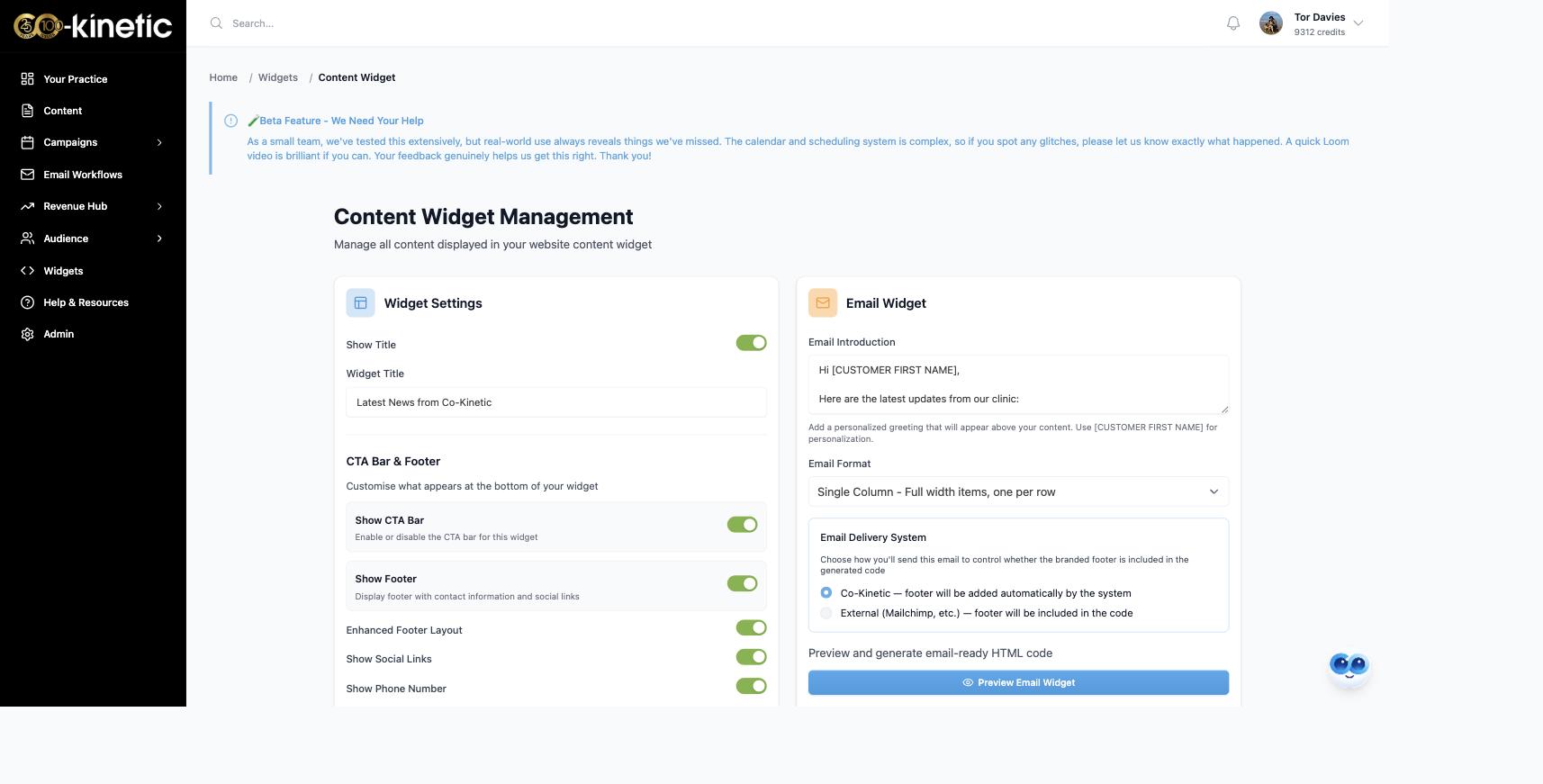
- Click Widgets in the left-hand menu, then Manage on the Content Widget card, and find the Email Widget panel.
- Edit the introduction: a couple of lines on what has been happening at the clinic. It carries merge fields that fill in each reader's details; keep them exactly as shown.
- Choose the Email Format from the dropdown: each option describes itself (for example "Single Column – Full width items, one per row"). Press Preview Email Widget to see it; pin the item you most want noticed so it leads.
- Under Email Delivery System, choose how you will send it: Co-Kinetic (the branded footer is added automatically at send) or External (Mailchimp, etc.) (the footer is included in the code, so it travels with you). Then press Generate Email HTML and copy the code: it looks technical; you only need to copy it.
- In Email Workflows, open the workflow this belongs in, add a new email, choose to write your own, and use the paste-widget-HTML option to drop the code in. The email builds itself from your feed.
- Finish and send safely: name the email, add a subject line, send yourself a test email to see it in a real inbox, then set the email active, and make sure the workflow itself is active and scheduled. It goes out in its slot like any other email.
The question behind the question
"Do I have to redo this every month?" No: that is the trick of it. Set up one recurring newsletter email in a workflow, and each month just tend the content widget: pin the new headline item, add anything fresh, archive what has passed. Press Get Email HTML again to pick up the latest pieces, and paste it into that month's email. Your monthly newsletter effort becomes ten minutes of feed-tending, not an hour of email-building 🗞️.
The next question is usually...
- How do I create content for my email and website widgets?
- How do I put my website widget on my website?
- How do I create a nurture email workflow?
Still stuck? This usually means...
- Something you expected is missing from the email. Open that piece in the content widget and check its visibility dates and that it is not archived, then preview again.
- The email looks wrong in your inbox test. Try a different layout: inboxes are unforgiving, and the four layouts exist because different content mixes suit different shapes.
- You want to use the HTML in an outside email tool. Choose External (Mailchimp, etc.) under Email Delivery System before generating, so the branded footer comes with the code, and still send yourself a test from that system, as merge fields work differently outside Co-Kinetic.