How do I create content for my email and website widgets?
This is part of the Clinic Growth Hub subscription.
Sound familiar?
Your clinic runs workshops, publishes advice, has news, and none of it reaches the website or the newsletter because updating those means chasing your web person or wrestling an email tool. The content widget fixes the plumbing: write a piece once in Co-Kinetic and it appears on your website and is ready to drop into your emails ✨.
What's happening
The Content Widget holds your feed of news, events and articles. Each piece has a title and description (with AI polish on tap), media, an optional call-to-action button, and visibility dates. The widget serves that feed to your website embed and your email HTML, always current, always in your branding.
Why it works this way
The reason clinic websites go stale is never laziness: it is that updating them lives in someone else's queue. Once the widget is embedded, the update path is: edit in Co-Kinetic, done. No re-pasting, no web person, no drift between what your emails say and what your site says 🙂.
What to do now
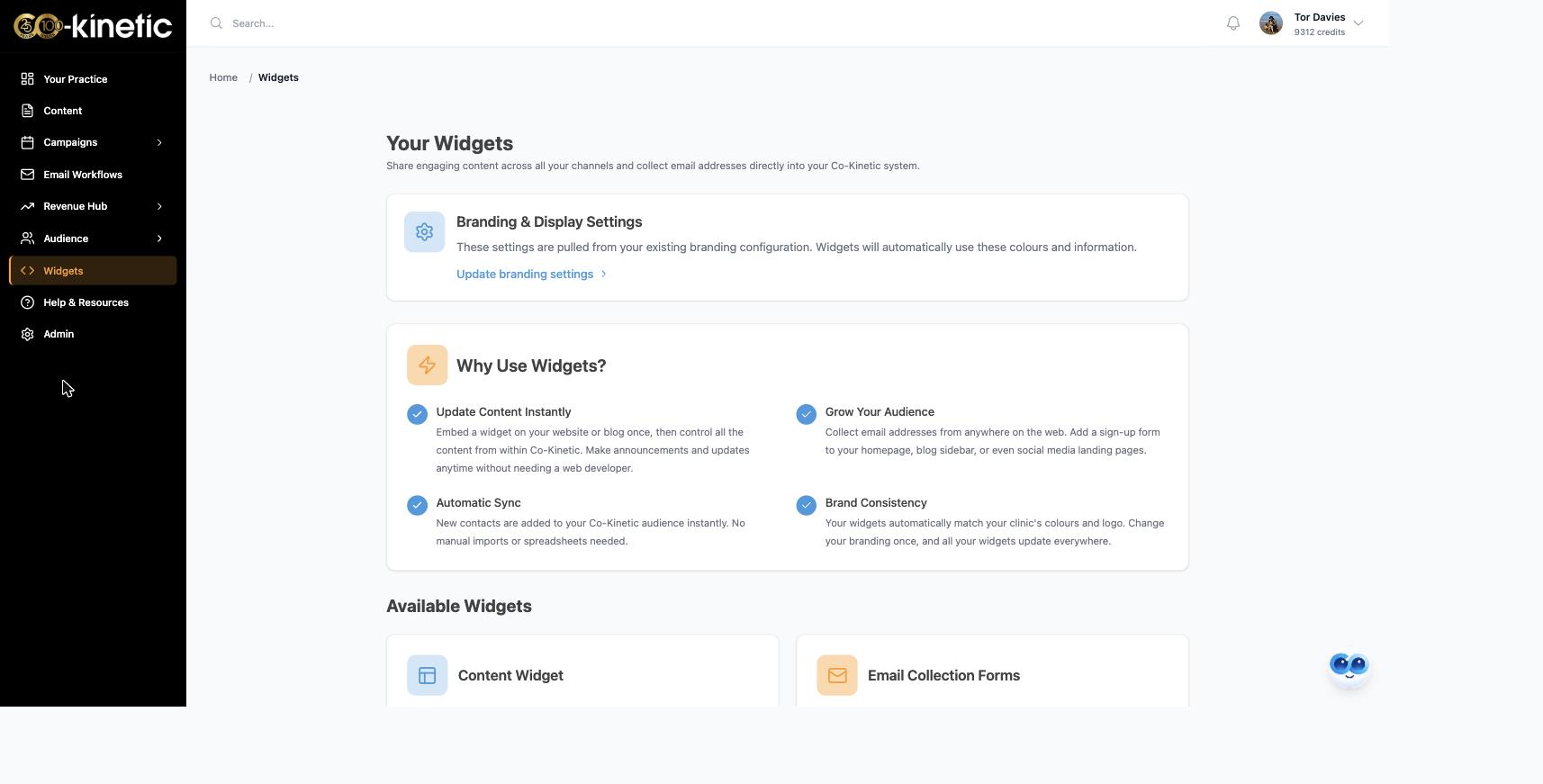
- Click Widgets in the left-hand menu. You land on Your Widgets, and check the Branding & Display Settings banner first: widgets pull your clinic's colours and logo automatically, so if branding is not set, click Update branding settings before building anything.
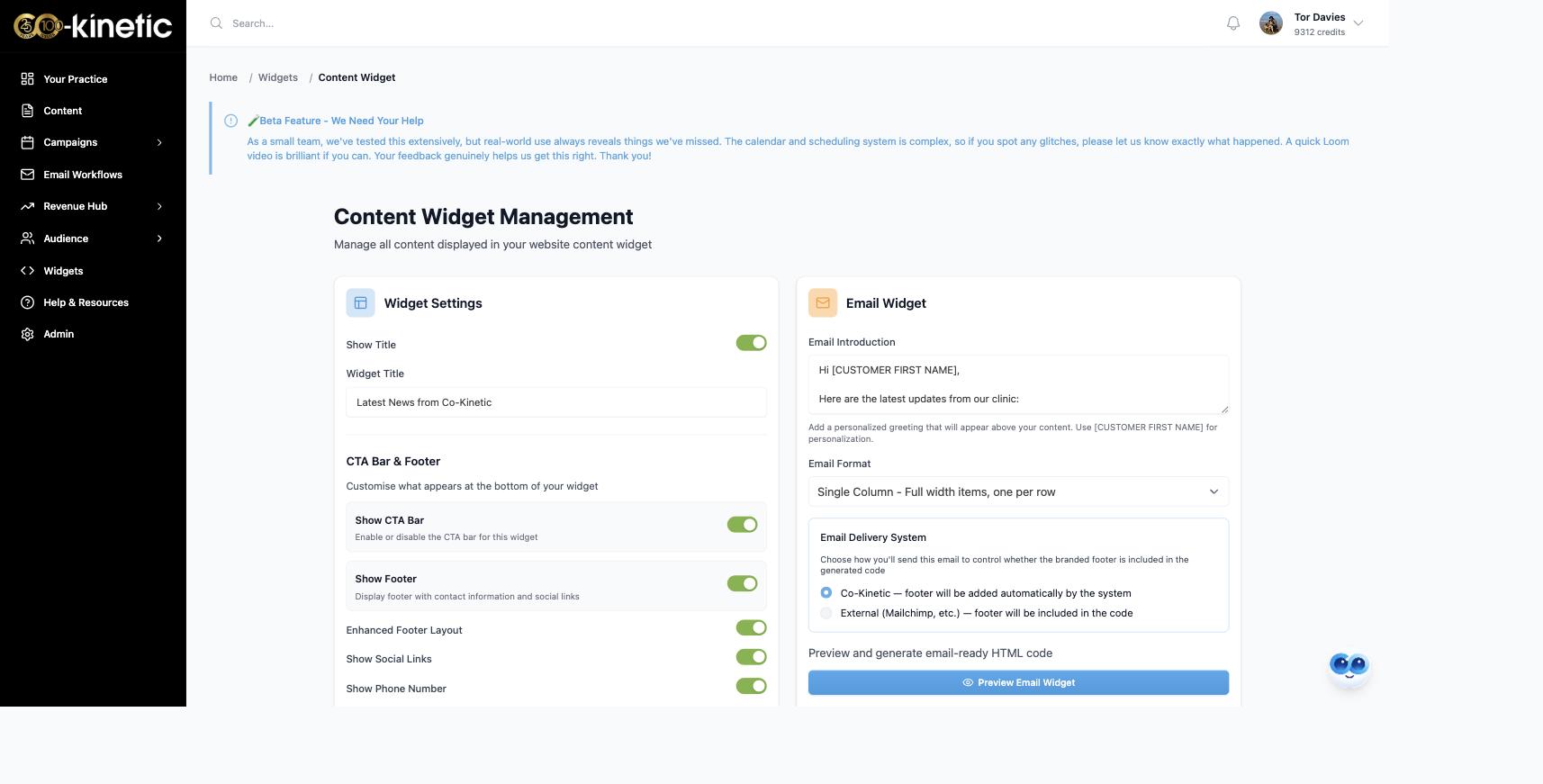
- Click Manage on the Content Widget card. You land on Content Widget Management, which holds everything: the Widget Settings panel (a Show Title toggle with your widget's title, and the CTA Bar & Footer controls, Show CTA Bar, Show Footer, social links, phone and email address toggles, all worth leaving on so people can always reach you), the Email Widget panel, the Website Widget panel, and your content list below.
- Create a piece of content. Type your title and description: rough is fine, "Back pain workshop, first Saturday of the month" is enough, because the AI polish buttons will write it out properly and you edit the result into your voice. Pick the kind of content it is, add optional tags, name the author, and add media: upload an image or search the built-in royalty-free library. The author shows as "By [name]" when someone opens the piece on your website. Tags let you show different content on different pages of your site (see "How do I put my website widget on my website?").
- Add a call to action if the piece should lead somewhere: "Book Now" with your booking page link.
- Set the visibility dates (when it starts and stops showing) and, for an event, the date it happens. When its visibility end date passes, it disappears from the feed and from the Events calendar on your website. Repeating events carry on until their own "Recurring End Date".
- Save it. Edit any time: changes flow everywhere the widget is embedded.
- Manage your tags on the Tags screen. You can create, rename and delete tags, and each tag shows how many items use it. Deleting a tag removes it from those items, and warns you if a filtered embed on your website relies on it.
- Short of ideas? Use the AI-powered topic search instead: type a topic ("running injuries for marathon season"), review the researched suggestions with their sources, import one you like, it arrives rewritten in patient-friendly language, then make it yours and save.
- Manage the feed: your content list holds everything for editing; pin the pieces you most want seen so they show first; archive rather than delete when something ends (hidden from the public feed, kept for reuse); the widget's analytics show views, clicks and call-to-action performance; and the Prompts area holds the AI writing prompts if you ever want the writing style adjusted.
Content can also arrive without you writing it here: an email workflow email can be sent to your news widget, and a scheduled social post with "Add to your news widget" toggled on drops into the feed too: worth knowing that the social route only adds the piece once the post has actually published to at least one network, and it shows on the website feed for seven days.
The question behind the question
"Who is going to keep this fed?" The honest answer is: mostly your existing marketing, automatically. Every workflow email and social post you choose to share flows in, the AI topic search turns one idea into a finished piece in minutes, and a pinned workshop plus a slow drip of advice pieces is a perfectly healthy feed. This is designed for a clinic with no marketing department: the feed builds itself as you market 🌿.
The next question is usually...
- How do I put my email widget into an email?
- How do I put my website widget on my website?
Still stuck? This usually means...
- The widget looks unbranded. Set your branding first (the banner at the top of Your Widgets): everything you have already created updates once branding is in.
- A piece is not showing. Check its visibility dates, that it is not archived.
- The AI polish does not sound like you. Edit the result, it is a starting point by design, and if it is consistently off, the Prompts area is where the writing style can be tuned.