How do I create a nurture email workflow?
This is part of the Clinic Growth Hub subscription.
Sound familiar?
You want to stay in your patients' minds between appointments without chasing anyone. You have heard "send a regular email" a hundred times but never had the time to run one. Or you have opened Email Workflows and are not sure which of the options builds the steady, helpful, non-salesy stream you have in mind. This is the guide for that: set it up once, top it up when you have something to share, and the system does the sending 💌.
What's happening
A nurture workflow is a sequence of helpful emails that goes out automatically on a regular rhythm you set. New contacts join the stream at its current point, so your content stays timely and nobody receives last year's news. The system watches your sending limits, skips anyone who has unsubscribed, and brands every email with your logo, colours and details from your business settings.
Why it works this way
Trust is built by showing up consistently with something useful, not by bursts of promotion. That is why a nurture workflow runs on a rhythm, and why it separates the schedule (set once) from the content (add emails whenever you like). Your daily and weekly limits act as a safety net across ALL your workflows: however many streams you run, no contact gets bombarded 🙂.
What to do now
Click Email Workflows on the left-hand menu (https://app.co-kinetic.com/email-workflows). In the bar at the top, set your Daily limit and Weekly limit: the most emails any one contact can receive from you across all workflows (minimum 1 each). The same bar holds a Default Workflow setting: the workflow new contacts fall into when nothing else claims them.
Click + New Workflow / Quick Email, and choose Full Workflow when asked what you would like to create.
Pick a purpose. Nurture & Educate suits this best. On the Setup step, give the workflow a name (for example "Nurture Email Sequence"), pick a Tone of Voice (Warm & Personal is the default and suits nurture well; Clinical & Professional, Chatty & Casual and Motivational are the others) and a Primary Goal (Build Trust is the default).
Under How does this workflow run?, choose from the On a rhythm cards:
- From the latest email: contacts join wherever the workflow currently is and continue from there. ✅ This is the one for nurture: content stays current for everyone.
- From the beginning: everyone starts at email 1 and works through in order. Right for a welcome or rehabilitation series, wrong for nurture.
- Never-ending (recipe updates): a set-and-forget stream fed by new recipe content. (Never-ending workflows do not finish, so they never hand people on to another workflow.)
The two Around a date cards (A shared date and Each person's own date) are for emails timed from a date, such as a webinar countdown or a birthday email. They are not for nurture. "Which kind of email workflow should I use?" explains all five.
Set the schedule. Frequency options are Daily, Weekly, Fortnightly or Monthly (Weekly on a Wednesday at 09:30 is the default; once a fortnight is a comfortable nurture rhythm). Pick the day and time your patients are likely to read.
Choose what happens under When this workflow ends... (not shown for Never-ending workflows): Stop keeps the contact where they are, Move to another workflow hands them on to the next sequence, and Loop back to start restarts the sequence from email 1 once a contact reaches the end. Then choose your Audience and press Create Workflow & Add Emails →.
Create your emails. For each one, either write your own or pick a Co-Kinetic educational campaign and leaflet and let the system write the email around it, links and merge fields included. If you personalise with merge fields such as the customer's first name, copy the field exactly as shown and never retype it. You can edit everything. Send yourself a test email (a preview to your own address) before relying on one. Switch each email on as you finish it. An email with no subject or no content can't be switched on, so nothing goes out blank. Write a few in one sitting so next month is covered.
Switch the workflow's Active toggle on. That is what starts the sending, and the order matters: contacts joining while the schedule is off simply wait, so activate once your first emails are ready.
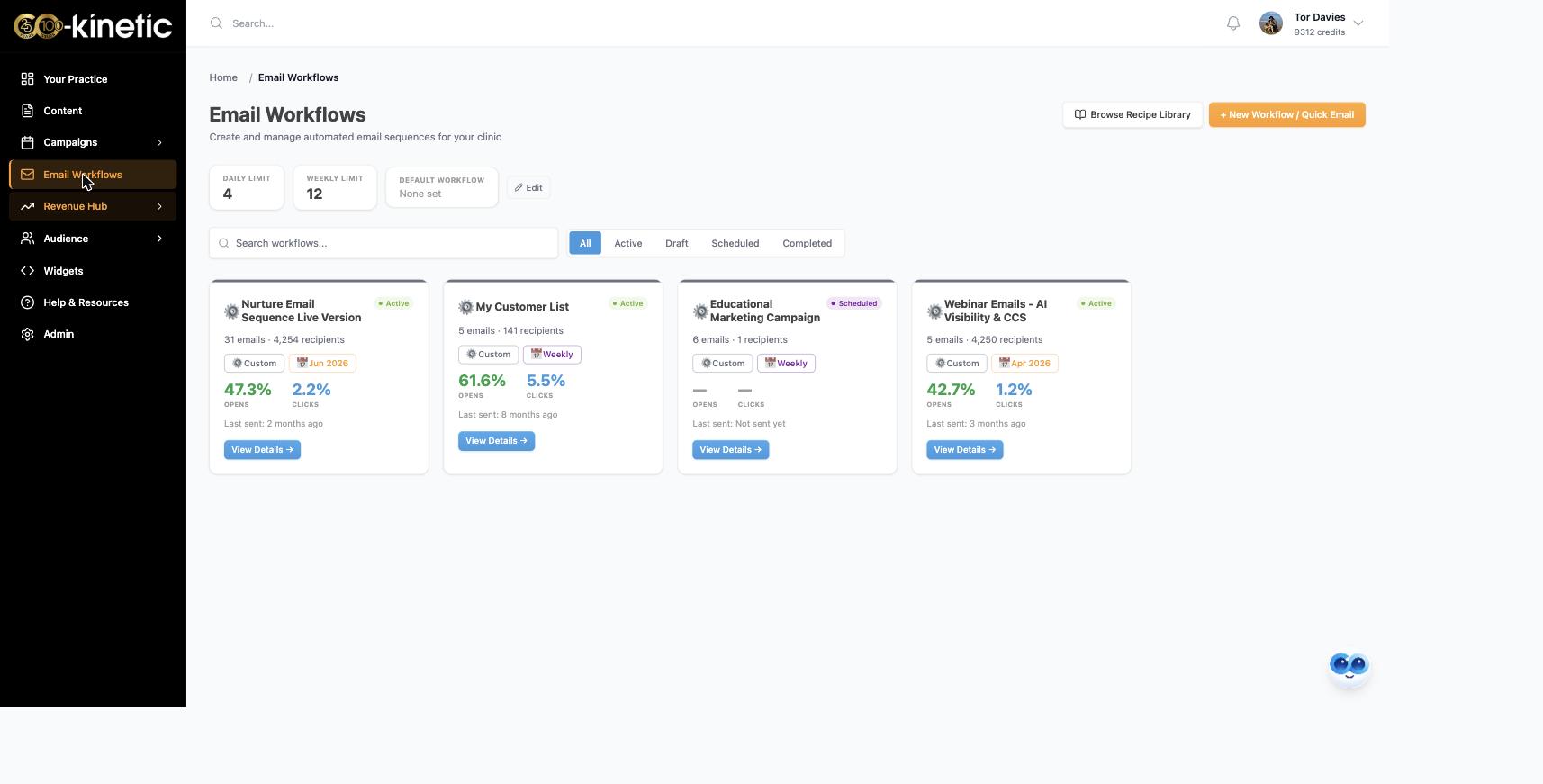
[SCREENSHOT TO CAPTURE: the Setup step with "How does this workflow run?" and From the latest email selected, replacing the old setup screenshot]
Changing your mind later is safe: switch the Active toggle off, edit anything, switch it back on. People pick up where they were; nobody is sent back to email 1. Switching a single email off is safe too: anyone waiting on it moves on to the next one. And adding a new email never puts back anyone who has already left the workflow.
Running more than one workflow? Inside a workflow, Edit priority lets you choose Top, High, Medium (the default) or Low. Top is exclusive: while a contact is part-way through a Top workflow, your other workflows hold back and do not email them until the Top one has finished. The other three share out your daily and weekly send limits: when a contact is in several workflows, High emails go first, Medium next, and Low only send if there is room left under your limits. Workflows at the same level do not hold each other back. Use Top for the sequence that must not be interrupted (a welcome or rehabilitation series, say), use High for time-sensitive date campaigns, and leave nurture at Medium. The Results view shows performance per email (opens, clicks, bounces and complaints), so over time you can do more of what your patients respond to.
The question behind the question
"Am I going to annoy people?" This is the worry that stops most clinics emailing at all, and the system is built so you can't easily do it: only subscribed contacts are emailed, unsubscribes are honoured automatically, your limits are re-checked at the moment of sending, and a fortnightly rhythm of genuinely useful content is the opposite of spam. The clinics that lose patients by email are the ones that go silent for six months and then blast promotions. Steady and helpful is what nurture means 🌱.
The next question is usually...
- Which kind of email workflow should I use?
- How do I add contacts and create audiences in Co-Kinetic?
- How do I create an email workflow from an educational marketing campaign?
- How do I put my email widget into an email?
Still stuck? This usually means...
- Your emails are not going out. Check the workflow's Active toggle is on, at least one email is switched on, and the contacts are subscribed to 💡 Health Tips & Advice. All three must be true before anything sends. Contacts who unsubscribe are taken out of your workflows, with the reason shown on their record.
- You want emails timed around an event or a patient's own date. That's a different kind of workflow. See "Which kind of email workflow should I use?".
- You cannot decide what to write about. Use the Co-Kinetic campaign route: pick a leaflet, let the system draft around it, then make it yours. Blank-page paralysis is what that button is for.
- Someone got an email they should not have. Tell us in the chat with the contact and the workflow name. Limits and subscriptions are meant to make this impossible, so we want to see it.